Start here
By product
When it goes wrong
Looking for what a specific tool does? The toolbox lists every one of them.
By product
Revit
112 actions in the open model, Revit 2023–2027 — the same from the docked chat panel or your own AI client.
What It Can Reach
| Project & model information | 29 | Levels, phases, links, worksets, views, sheets, warnings, material take-off, parameter and duplicate-type audits. |
| Elements & parameters | 23 | Find by category or parameter value, bulk-set, find-and-replace inside values, copy between parameters, move, rotate, mirror, array. |
| Views, sheets & content | 32 | Create views, sections, callouts and drafting views, place them on sheets, create schedules and view filters, place families, walls and columns. |
| Annotation & tagging | 6 | Tag all in view, tag rooms, find untagged elements, dimensions, text notes. |
| Documents | 6 | Open, close, save and save-as, list open models, sync with central — batches run unattended. |
| MEP | 3 | Ducts, pipes and systems. |
| Export & interoperability | 3 | Documents, IFC, schedules to Excel. |
| Dynamo | 10 | Open, author, inspect and run graphs from the conversation. |
The full list, one line each, is in the toolbox entry.
Walkthrough: Parameter Cleanup
The job everybody has: a parameter that was filled in inconsistently across a few hundred elements.
“Find every wall where Fire Rating is empty or says ‘N/A’, and list them by level.”
You get a count and a breakdown — the size of the problem before you touch it. The assistant keeps the set, so the next message acts on exactly those:
“Set Fire Rating to 60 on the ones on Level 1 and Level 2.”
It reports how many changed and which failed. The whole edit is one transaction, so a single Ctrl+Z reverses it.
Walkthrough: Sheets and Views
Batch documentation is where the clicking really adds up.
“Create a sheet for each level using the A1 titleblock, name them ‘{Level} — General Arrangement’, and place the matching floor plan on each one.”
Sheets, viewports and placement in one pass. Ask it to renumber if your standard differs from creation order.
Walkthrough: Audits and Warnings
Warnings are the model’s own to-do list, and nobody reads 4,000 of them. Ask for the shape instead of the list:
“Group the warnings by type and show me the five biggest, with counts.”
Then take them one group at a time — many types can be resolved directly, and it tells you what it couldn’t fix. Run the duplicate-type and parameter audits before a milestone issue.
Walkthrough: Driving Dynamo
Live in Dynamo? The assistant opens a graph, reads its nodes, authors new ones and runs it — a hand-built graph becomes a sentence.
“Open my Rebar Tagger graph, tell me what inputs it expects, then run it against the current view.”
Choosing What It Can Touch
Settings → Tools lists all 112 with a checkbox and a Read-Only column. A tool you turn off is hidden from the assistant.
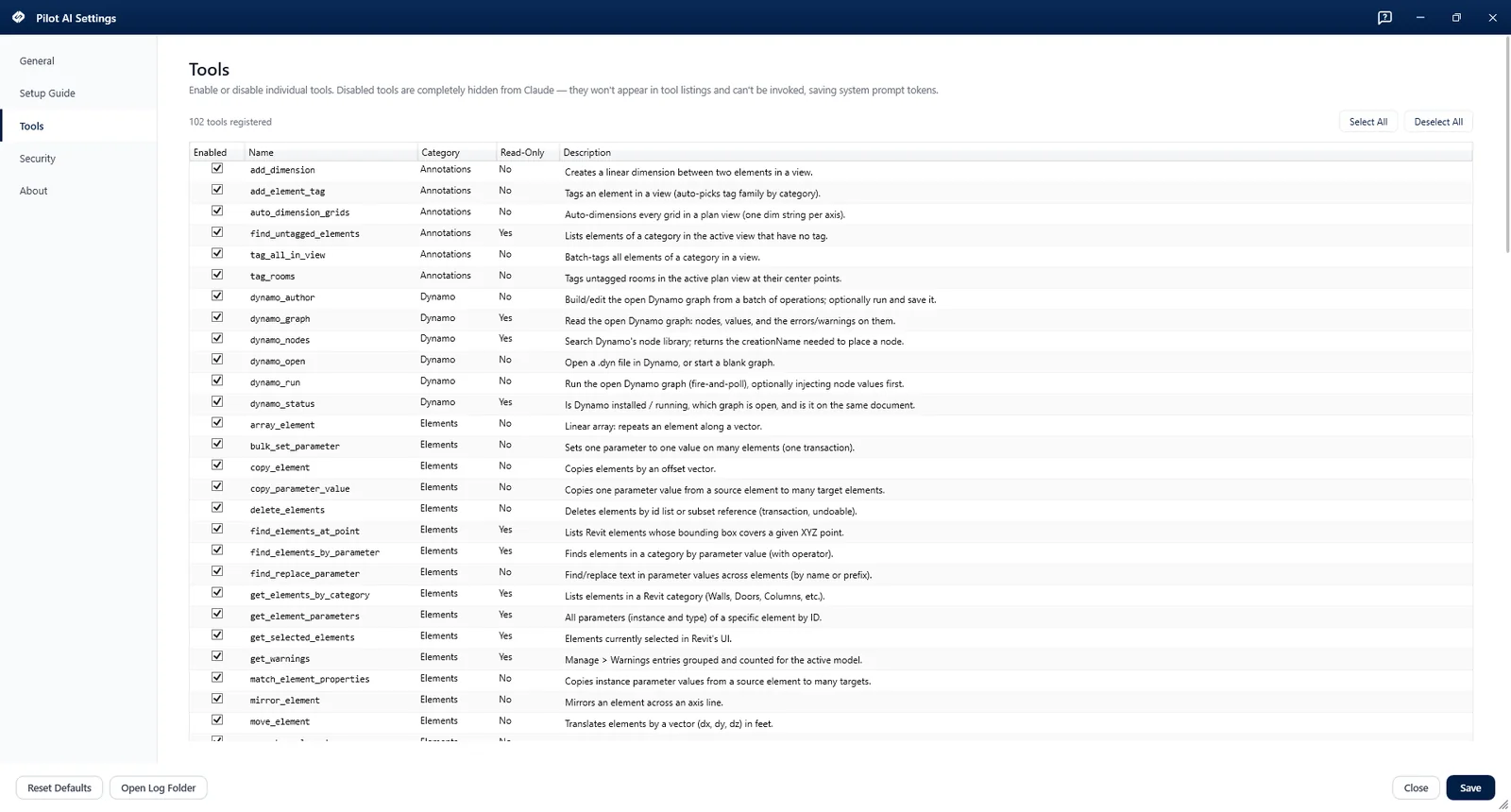
Settings → Tools, in Revit. All 112, with the Read-Only column that tells you which of them can change the model.
Keep the read-only tools, switch off the writers, and it answers anything and edits nothing — see controlling what it can do.