Start here
By product
When it goes wrong
Looking for what a specific tool does? The toolbox lists every one of them.
By product
Inventor
73 actions in Autodesk Inventor 2027 — parameters and iLogic, sheet metal, assemblies, BOM and interference, drawings and export.
What It Can Reach
Part features 11
Assemblies 11
Sketches 7
Parameters & model states 6
Drawings 6
iLogic 6
Model structure & measurement 4
Document context 3
Document lifecycle 3
Sheet metal 3
Connector & diagnostics 3
Geometry inspection 2
iProperties 2
View 2
Export 2
Search 1
Code execution 1
Every action is listed with a one-line description in the toolbox entry.
Pilot AI for Inventor in the toolbox →
Four Document Types, and It Knows Which Is Which
Part (.ipt), Assembly (.iam), Drawing (.idw / .dwg), Presentation (.ipn) — most operations belong to one. An interference check with a part open gets a clear “wrong document type”, not an obscure failure.
Walkthrough: Driving a Part by Parameter
Parameters are the honest interface to a part, and the assistant works in expressions, not just numbers:
“List the user parameters, then set PlateThickness to 12 mm and tell me which features rebuilt.”
Walkthrough: iLogic Without the Rule Editor
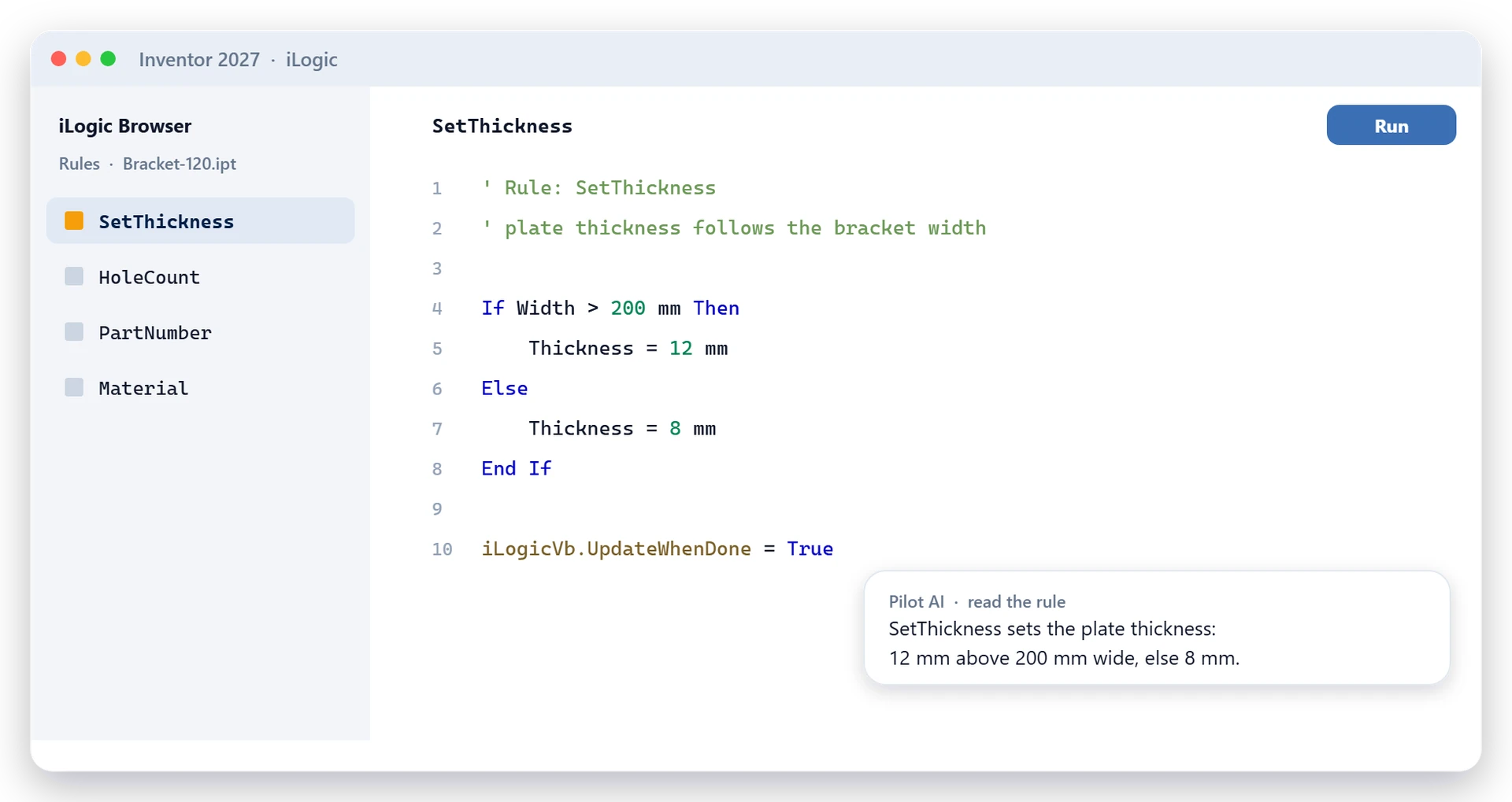
Six actions: list, read, create, update, delete and run rules. Because it reads a rule first, you can extend what you wrote instead of starting over.
“List the iLogic rules in this part and tell me which one sets the plate thickness.”
“Update that rule so it also drives the hole spacing, then run it.”
Walkthrough: Sheet Metal and the Blank Size
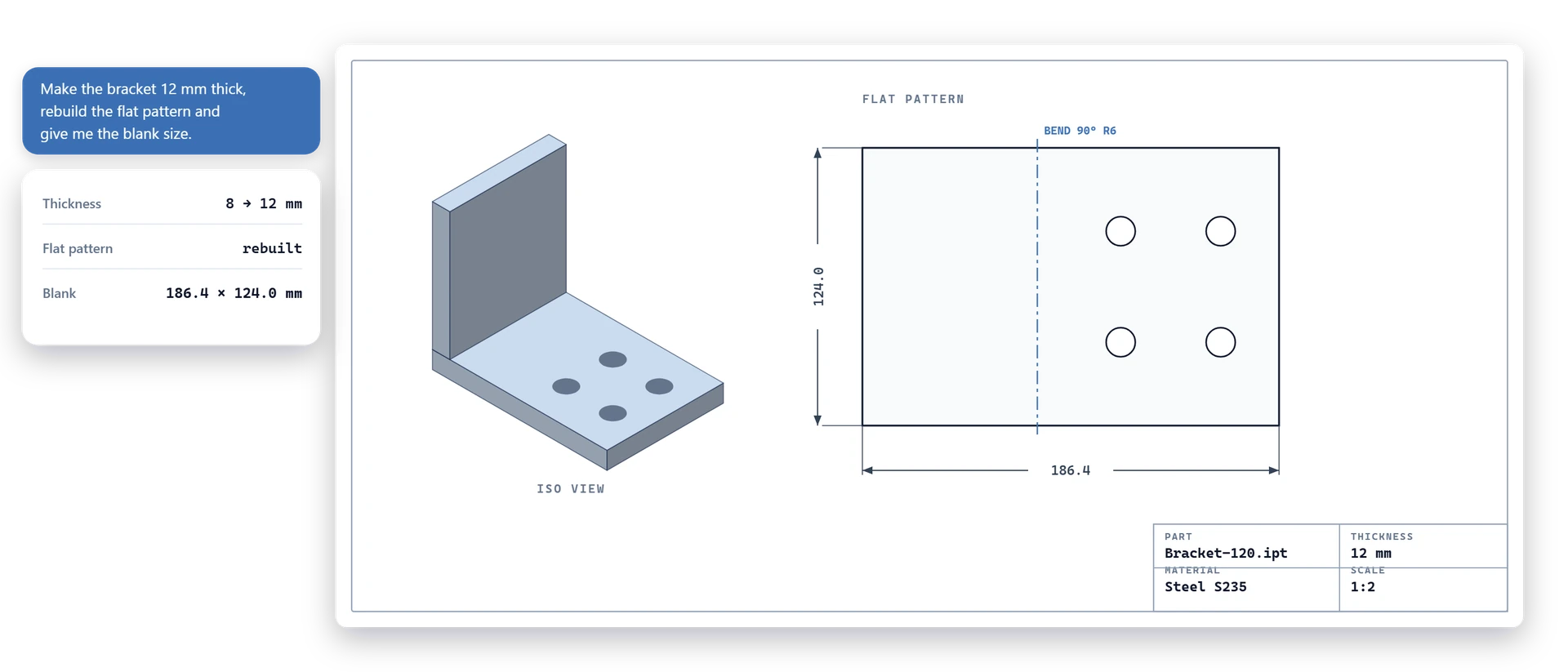
Convert a part to sheet metal, create the flat pattern, and read its extents — the number you need for nesting and for quoting material:
“Make the bracket 12 mm thick, rebuild the flat pattern and give me the blank size.”
No flat pattern view to open — and the number comes from the real flat pattern, not an estimate.
Walkthrough: An Assembly Check Before It Ships
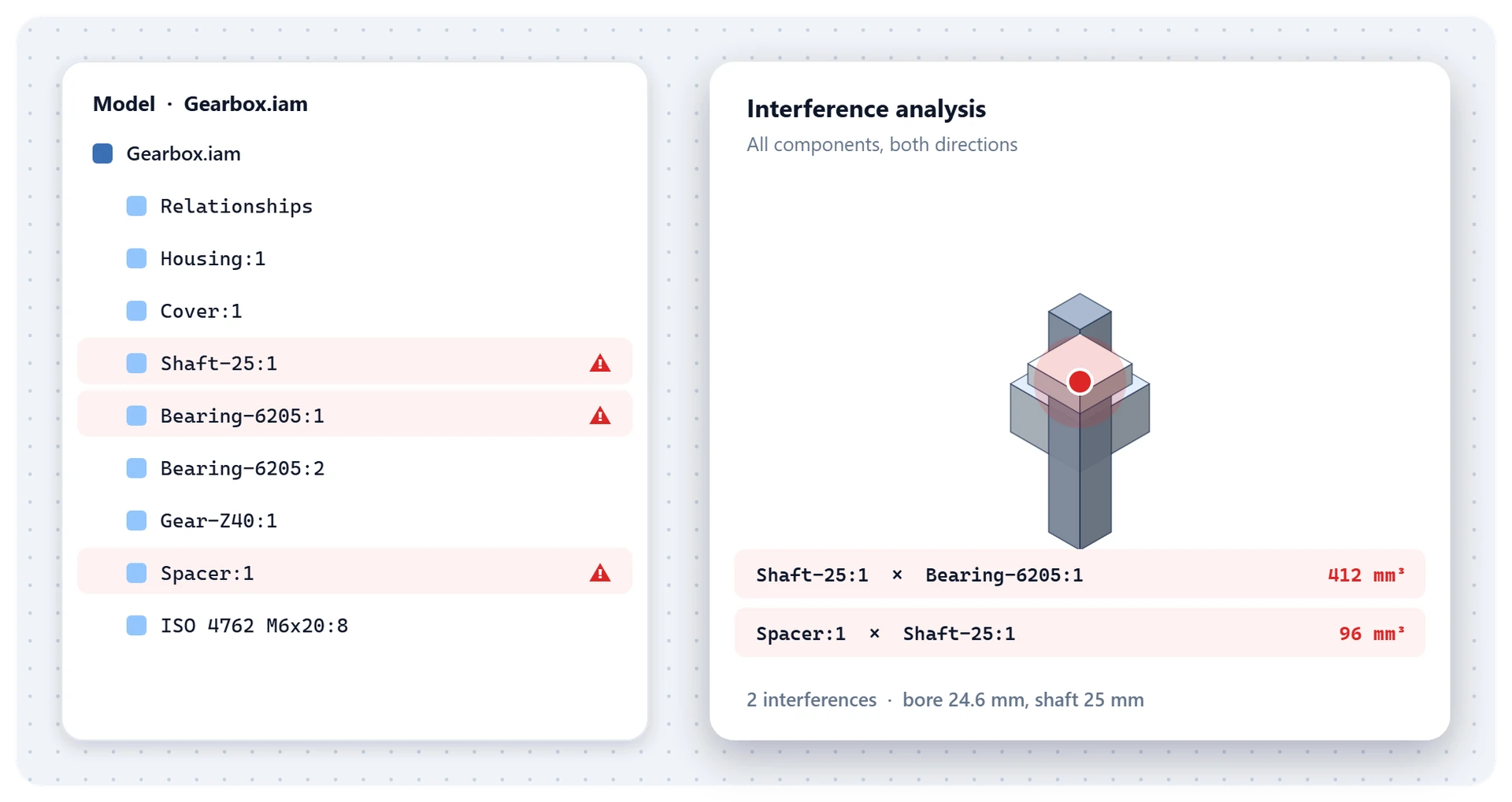
Eleven assembly actions: place and ground, constraints, the occurrence tree, model and occurrence states, BOM and interference:
“Check this assembly for interference and tell me which components overlap and by how much.”
“Export the BOM to Excel — structured, with part numbers and quantities.”
Constraints are made by naming a face on each part — the assistant can list the faces first, so an assembly step can be described in words.
Walkthrough: From a Checked Assembly to a Drawing
Six drawing actions cover sheets, base and projected views, and parts lists:
“Create a drawing sheet with a base view and two projected views of this part, then add a parts list.”