Guide · ChatGPT & AutoCAD
How to connect ChatGPT to AutoCAD, then give it a real job
ChatGPT can work on the drawing you have open in AutoCAD or Civil 3D. Your ChatGPT account connects through the Codex app, and AEC Pilot sets up the link in one click. Below are the five steps, then a real job: a consultant's messy floor plan brought to an office CAD standard, with a sheet and a PDF, from one prompt.
What you need
ChatGPT reaches AutoCAD through MCP, the Model Context Protocol. AEC Pilot runs an MCP server called aec-cad inside AutoCAD on your PC, and the Codex app, signed in with your ChatGPT account, talks to it. ChatGPT in the browser cannot reach a server on your computer, so use the app.
- AutoCAD or Civil 3D 2021–2027. AutoCAD LT does not load add-ins, so it is not supported.
- The Codex app for Windows and a ChatGPT account.
- AEC Pilot, free for 14 days with no card. You use your own OpenAI account; AEC Pilot adds no AI fee.
Step 1: install AEC Pilot for AutoCAD
Close AutoCAD and run the installer: it finds your Autodesk applications and adds AEC Pilot to the ones you pick. Start AutoCAD, open the AEC Pilot tab, click Activate and paste the username and licence key from your account.
Step 2: get the Codex app
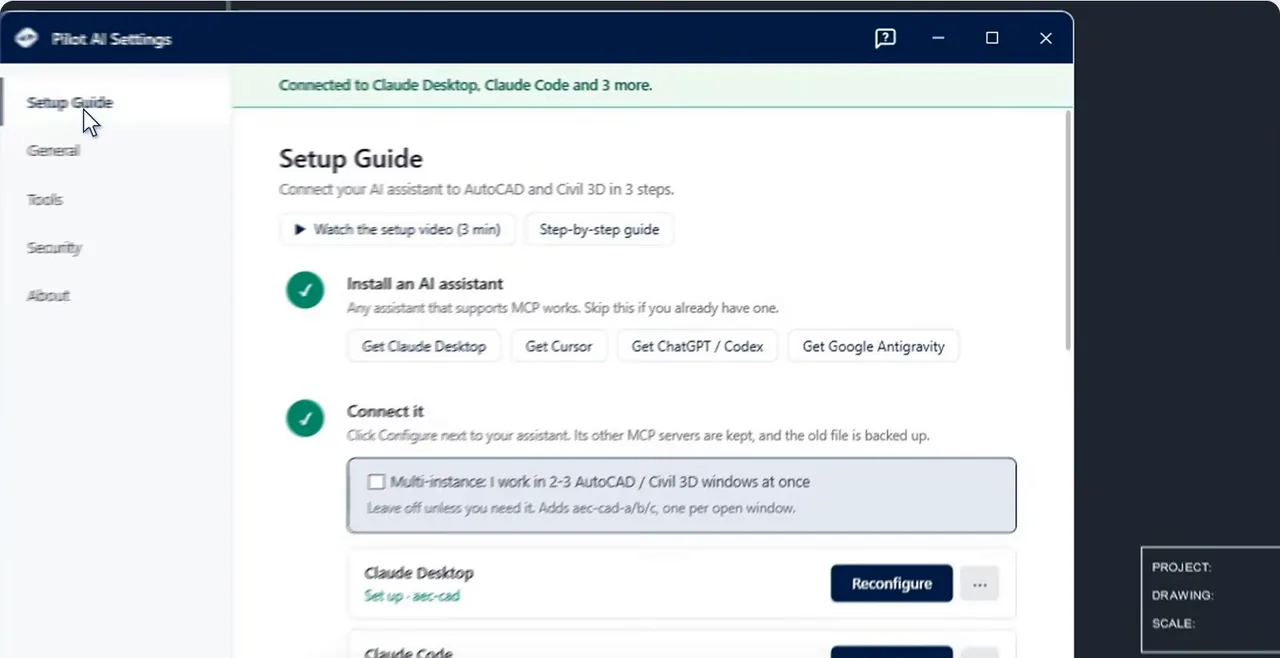
On the AEC Pilot tab, click Settings and open Setup Guide. No Codex app yet? Get ChatGPT / Codex opens OpenAI's download page: download it for Windows, install it and sign in with your ChatGPT account.
Step 3: click Configure next to ChatGPT / Codex
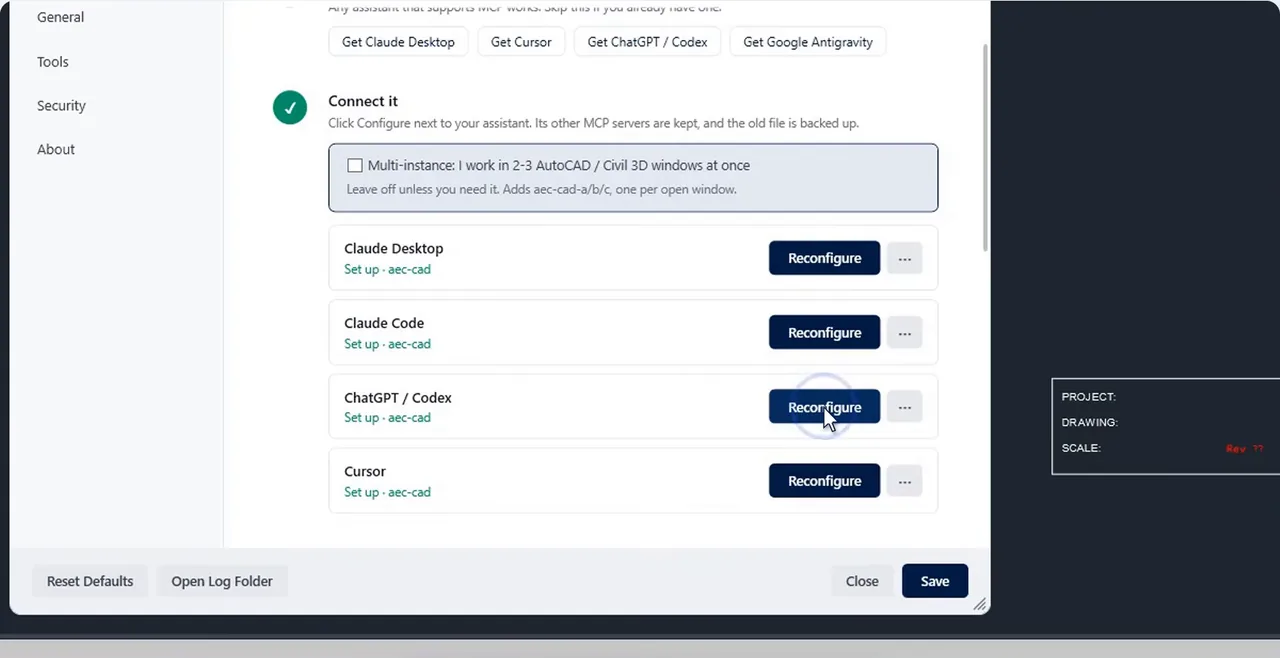
Back in Setup Guide, click Configure next to ChatGPT / Codex. It writes an aec-cad entry into config.toml, the file in the .codex folder of your user profile that Codex reads. It touches only its own entries, keeps your other MCP servers, backs up the old file and gives the server 60 seconds to start. There is no file to edit by hand.
Step 4: quit ChatGPT completely, then ask a first question
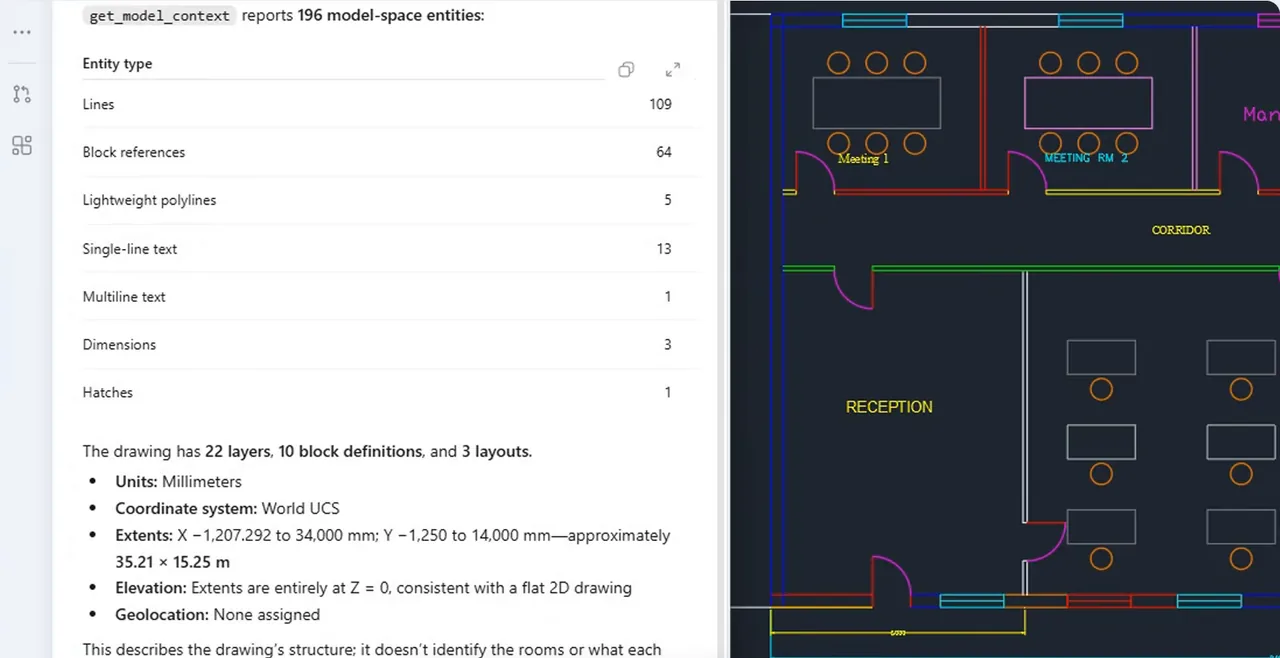
Codex reads config.toml when it starts, so closing the window is not enough: choose File → Quit ChatGPT and start it again. The AEC Pilot connector starts with AutoCAD and listens on port 7900, and in AutoCAD it now says Connected. Then check with a question about the open drawing:
“Use aec-cad: what is in my AutoCAD drawing?”
It names the drawing and reads it back: layers, block definitions, layouts and what the objects are.
Step 5: set up Codex for real work
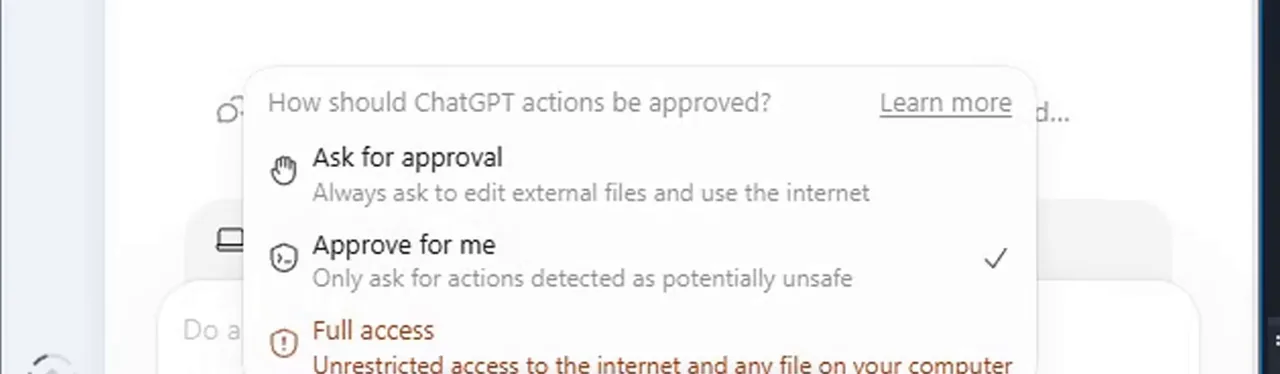
Pick the project folder, so ChatGPT can read files such as your CAD standard and save the PDF next to them. Choose the model. Approvals decide how often Codex stops to ask: with Approve for me it works through the job on its own, and its automatic review can still block a step it finds risky. For a first run, work on a copy of the drawing.
A real job: a messy consultant DWG to our CAD standard
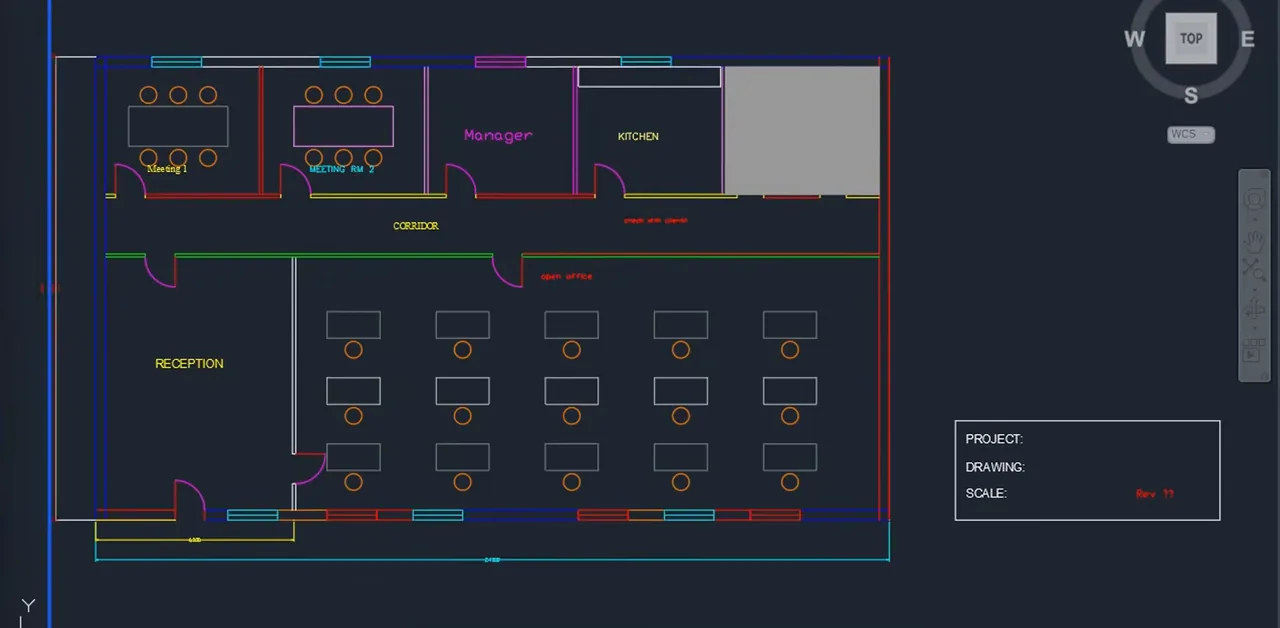
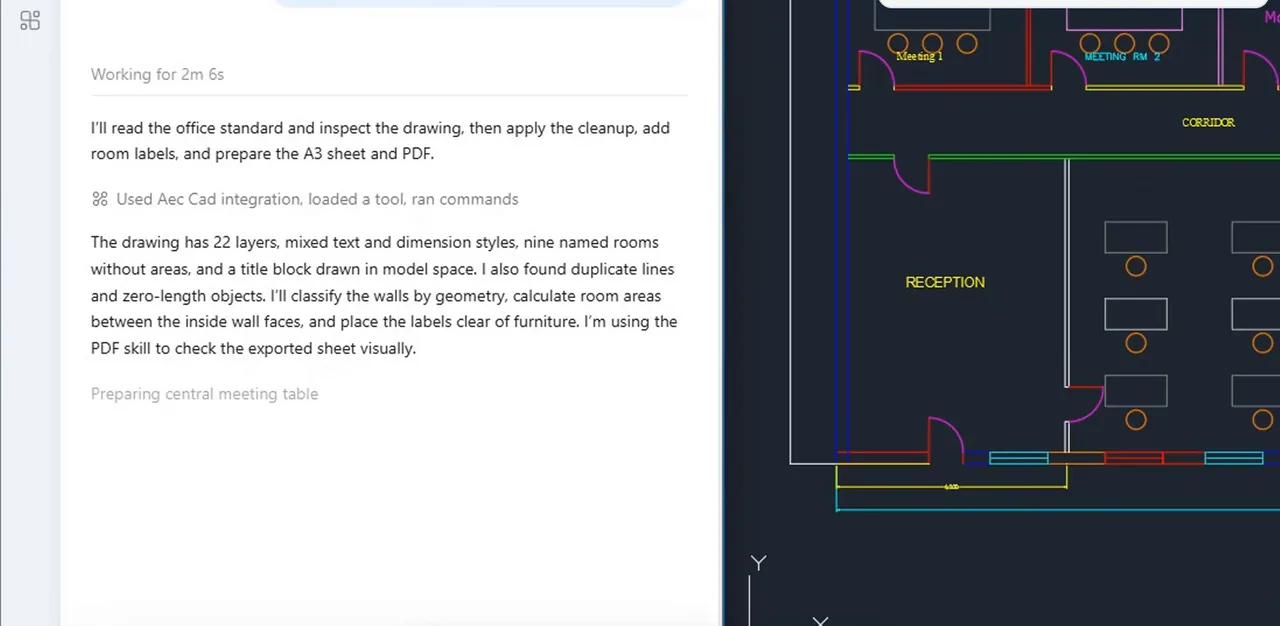
The drawing is a Level 2 office fit-out plan that we made messy on purpose for this test: 22 random layers, colours set on the objects, five text styles, three dimension styles, duplicate and zero-length lines, unused blocks and a title block drawn in model space. Next to it in the folder: our one-page office CAD standard. The prompt, word for word:
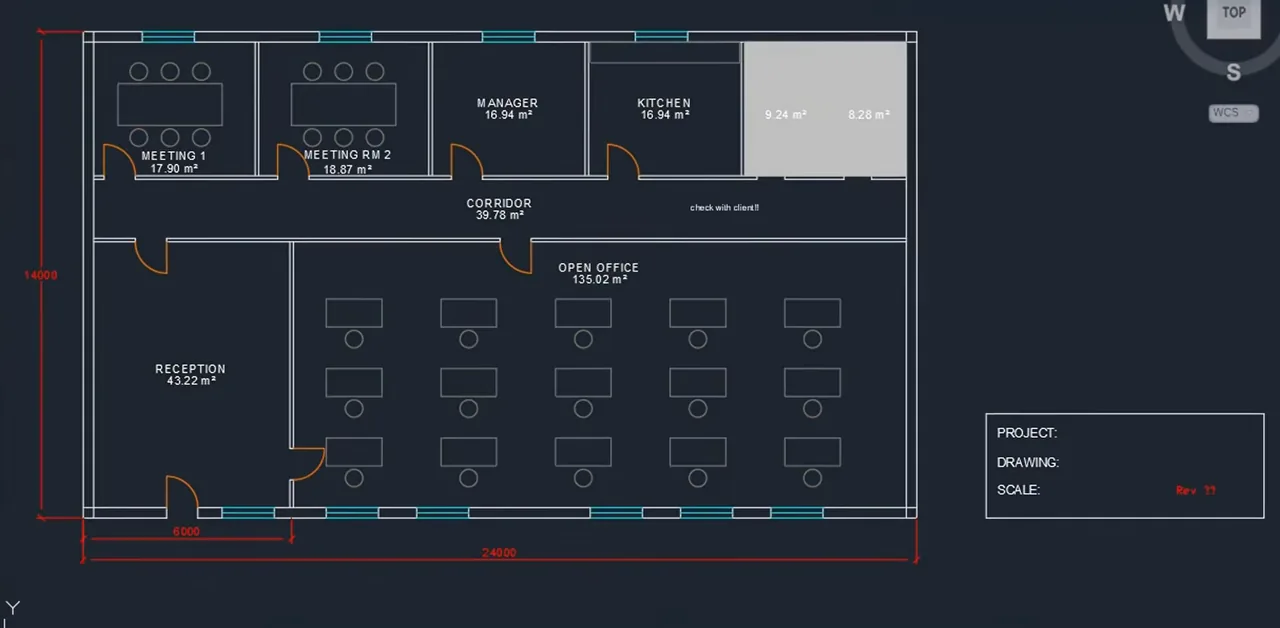
“Consultant_Office_L2.dwg is open in AutoCAD. It came from a consultant and it's a mess. Bring it to our office CAD standard (Office_CAD_Standard.md in this folder): fix the layers, colours, text, dimensions and block names, clean out duplicates and everything unused, and label every room with its name and area. Then set up sheet A-101 Floor Plan on A3 (project: Office Fit-Out, Level 2) and export it to PDF in this folder. When you're done, give me a short before/after summary.”
ChatGPT Plus with GPT-6 Astra (High), AutoCAD 2023. The job took 8 minutes 29 seconds. When it finished, we checked every number below in the cleaned drawing:
- Layers: 22 random layers became the 12 of the standard, plus AutoCAD's own 0 and Defpoints, and every object is ByLayer.
- Styles: one text style, OFFICE-TXT, and one dimension style, OFFICE-100.
- Clean-up: duplicate and zero-length lines removed, unused blocks purged, six blocks under standard names.
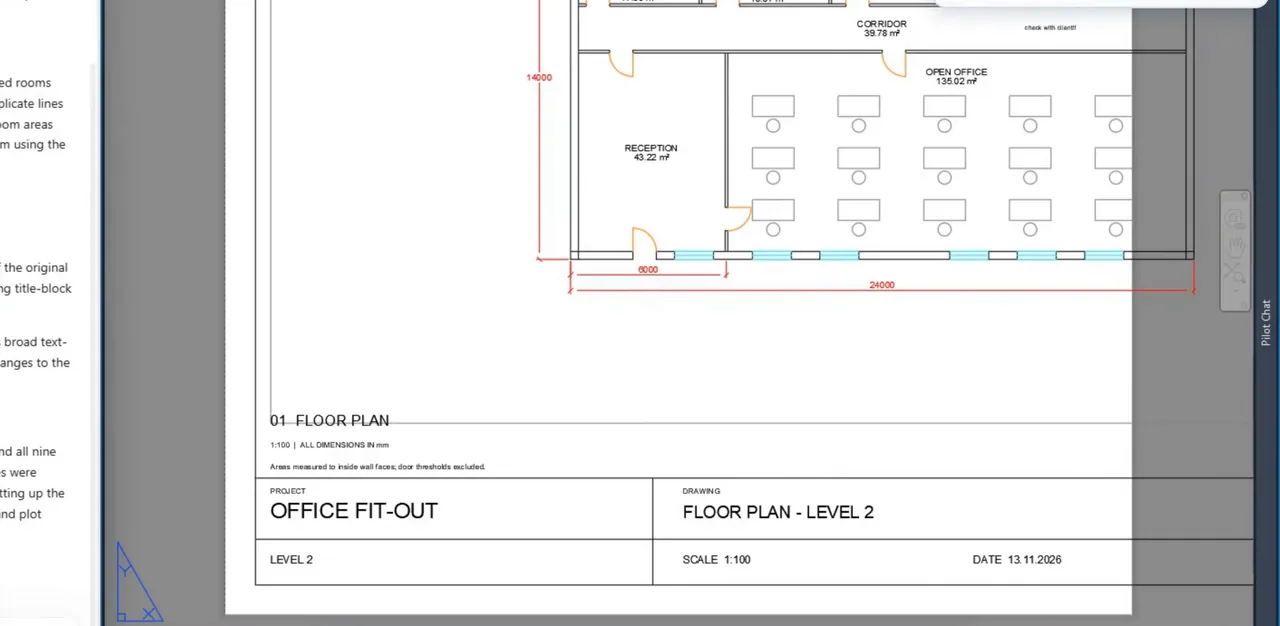
- Rooms: all nine rooms labelled with their name and area, clear of the furniture.
- Sheet: A-101 on A3 landscape at 1:100, title block filled in, exported to PDF.
- Self-check: it opened its own PDF three times and fixed what it found before reporting.
Two things we liked. It kept a copy of the original drawing before it started, and it left the consultant's “check with client!!” note in place instead of tidying it away. And once, Codex's automatic approval review blocked a cleanup script whose text-deletion rule was too wide; ChatGPT narrowed the rule and carried on.
Watch the setup and the job on YouTube · AutoCAD & Civil 3D MCP
Civil 3D: the same connection
Civil 3D uses the same AEC Pilot install and the same aec-cad server, so there is nothing more to set up. The Civil actions, such as alignments, profiles, surfaces and pipe networks, appear only inside Civil 3D.
“Use aec-cad: list every alignment in this drawing with its length and start station.”
If it does not connect
- ChatGPT does not see aec-cad: quit it with File → Quit ChatGPT and start it again; closing the window leaves it running.
- No ChatGPT / Codex row in Setup Guide: install the Codex app first, then click Rescan.
- The answer does not come from AutoCAD: name the server in your request, as in “Use aec-cad: …”.
- You are in ChatGPT on the web: switch to the Codex app. The web version cannot reach a server on your PC.
- Two AutoCAD windows are open: Multi-instance in Setup Guide gives each window its own server, so ChatGPT can tell them apart.
What it may change, and what stays on your PC
The connector runs inside AutoCAD on your PC and answers only requests from the same computer. Your drawing is not uploaded; ChatGPT sees what the tools return for the questions you ask.
Settings → Tools lists every tool with a Read-Only column, and a tool you switch off is hidden from ChatGPT: keep the readers, switch off the writers, and it can answer anything and change nothing.
Requests to try
- “List the layers in this drawing and how many objects are on each.”
- “Move everything on layer WALLS-OLD to A-WALL and set it ByLayer.”
- “Find text that overlaps other text and list where it is.”
- “Count the chairs and desks on this floor.”
- “Set up an A3 layout at 1:100 and plot it to PDF.”
- “Purge everything unused, then tell me what was removed.”
Frequently asked questions
Can ChatGPT connect to AutoCAD?
Yes. With AEC Pilot, the Codex app signed in with your ChatGPT account works on the drawing open in AutoCAD 2021–2027 through an MCP server on your PC. ChatGPT on the web cannot reach a server on your computer.
Do I need to edit config.toml?
No. Configure in AEC Pilot's Setup Guide writes the aec-cad entry, keeps your other servers and backs up the old file. There is no Node.js or Python to install.
Does it work with Civil 3D and AutoCAD LT?
Civil 3D, yes: the same install and the same aec-cad server, with the Civil actions inside Civil 3D. AutoCAD LT, no: it does not load .NET add-ins.
Can ChatGPT clean up a DWG to our CAD standard?
In our test it did, from one prompt: 22 layers to the 12 of the standard, one text style, one dimension style, rooms labelled, sheet A-101 and a PDF, in 8 minutes 29 seconds. Give it your standard as a file in the project folder, and work on a copy.
Does my drawing leave my computer?
The drawing file does not: the server runs inside AutoCAD on your PC and answers only requests from it. ChatGPT sees what the tools return for the questions you ask.
How much does it cost?
AEC Pilot is free for 14 days, then €199 per seat per year + VAT, for all its Autodesk applications on the computer. You use your own OpenAI account; AEC Pilot adds no AI fee.
Put ChatGPT to work in your AutoCAD drawings.
Free for 14 days — every tool, no card required.