Guide · ChatGPT & Codex
How to connect ChatGPT and Codex to Revit and AutoCAD
ChatGPT and Codex can work on your live Revit model and the AutoCAD drawing you have open. The way in is MCP, the Model Context Protocol. Here is which ChatGPT to use, the one-click setup with AEC Pilot and how to check that it worked, without editing a configuration file.
Which ChatGPT works with Revit
OpenAI supports MCP servers on your own computer in three places: the ChatGPT desktop app, the Codex CLI and the Codex IDE extension. All three read the same configuration file, so one setup covers them all. ChatGPT on the web uses only remote MCP tools, through plugins, so it cannot reach the server AEC Pilot runs inside Revit on your PC.
ChatGPT desktop app
Works with AEC Pilot
Codex CLI
Works with AEC Pilot
Codex IDE extension
Works with AEC Pilot
ChatGPT in the browser
Remote MCP tools only
- Revit 2023–2027, or AutoCAD and Civil 3D 2021–2027. The LT versions do not load add-ins, so they are not supported.
- The ChatGPT desktop app, the Codex CLI or the Codex IDE extension.
- AEC Pilot, free for 14 days, and your own OpenAI account: AEC Pilot adds no AI fee.
Step 1: install AEC Pilot and activate it
Close Revit and AutoCAD, then run the installer: it finds your Autodesk applications and adds AEC Pilot to the ones you pick. Open the AEC Pilot tab, click Activate and paste the username and licence key from your account. Settings asks for the licence first, so do this before step 2.
Step 2: click Configure next to ChatGPT / Codex
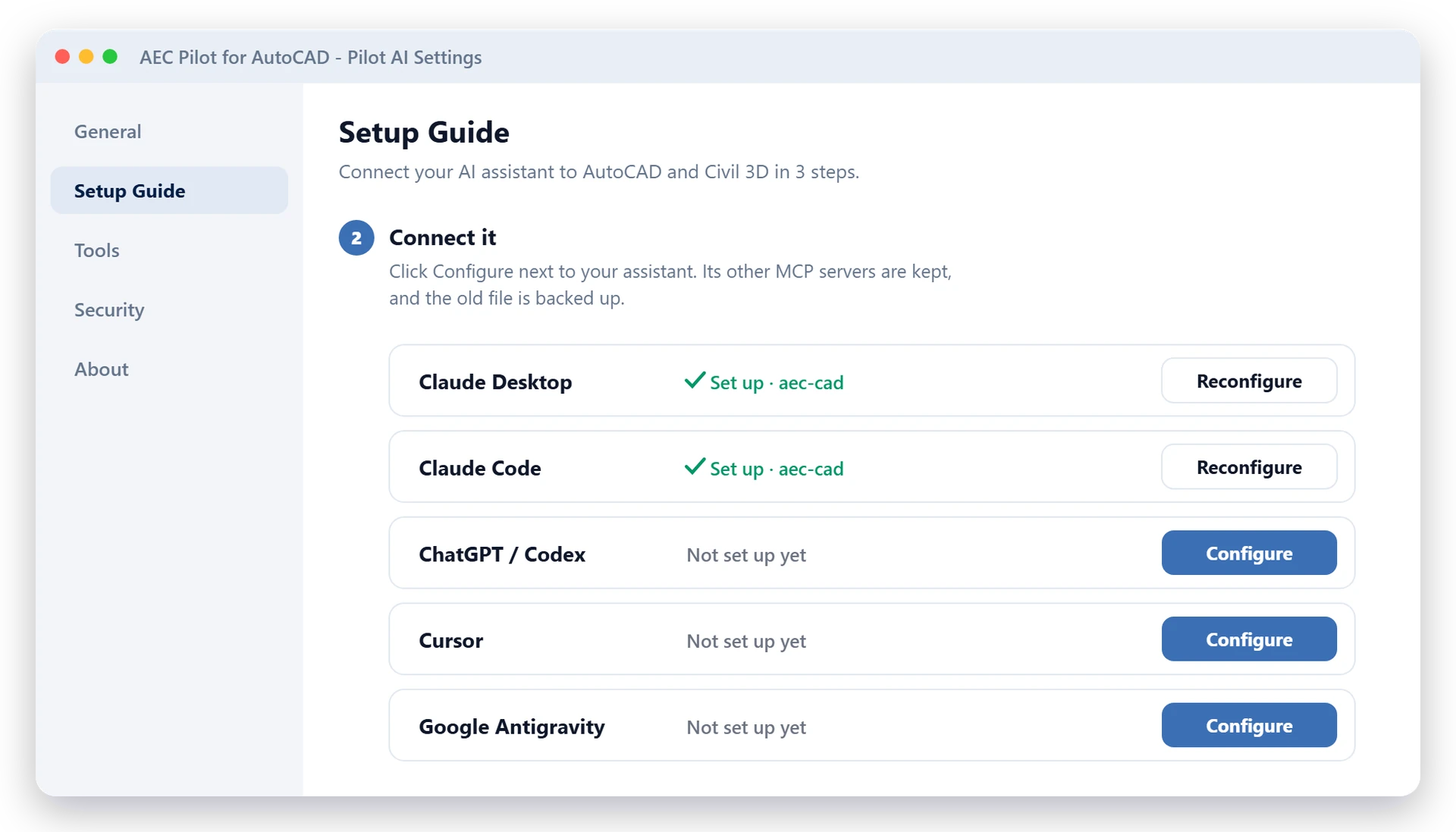
On the AEC Pilot tab in Revit, click Settings, open Setup Guide and click Configure next to ChatGPT / Codex. The row appears when Codex is installed on this PC. No row? Get ChatGPT / Codex in Setup Guide opens OpenAI’s download page; install it, then click Rescan.
Configure writes an aec-pilot entry into config.toml, the file in the .codex folder of your user profile that the app, the CLI and the extension share. It touches only its own entries, keeps your other MCP servers, backs up the old file and checks the whole file before saving. It also gives the server 60 seconds to start, where Codex’s default is 10.
~/.codex/config.toml
[mcp_servers.aec-pilot]
command = '…\aec-mcp-bridge.exe'
args = []
startup_timeout_sec = 60

[mcp_servers.aec-pilot.env]
AEC_PROFILE = 'pilot'
AEC_PILOT_URL = 'http://localhost:7823/'
What Configure adds to config.toml. Your other servers stay as they are.
Prefer to do it yourself? Set up by hand in Setup Guide shows the entry, and Copy Snippet copies it.
Step 3: quit and reopen, then check the server
Codex reads config.toml when it starts, so quit ChatGPT or Codex completely and open it again. Then check that aec-pilot is there:
- ChatGPT desktop app: Settings → MCP servers lists it, and typing /mcp in the message box shows the connected servers.
- Codex CLI: codex mcp list shows it, and /mcp inside a session shows the active servers.
- IDE extension: restart the extension, or the editor.
The Setup Guide row now says Set up · aec-pilot.
Step 4: start the connector and ask about the model
In Revit, nothing runs until you click Connector on the AEC Pilot tab. It starts a small server on port 7823 that answers only your own computer, and Settings → About shows Connected, the port and how many tools it registered. Then ask, in a new chat:
“Use aec-pilot: which model is open, and how many levels and sheets does it have?”
It names the Revit window it reached and the model open in it. If the first answer does not come from Revit, name the server in your request, as above.
AutoCAD and Civil 3D: the same row, server aec-cad
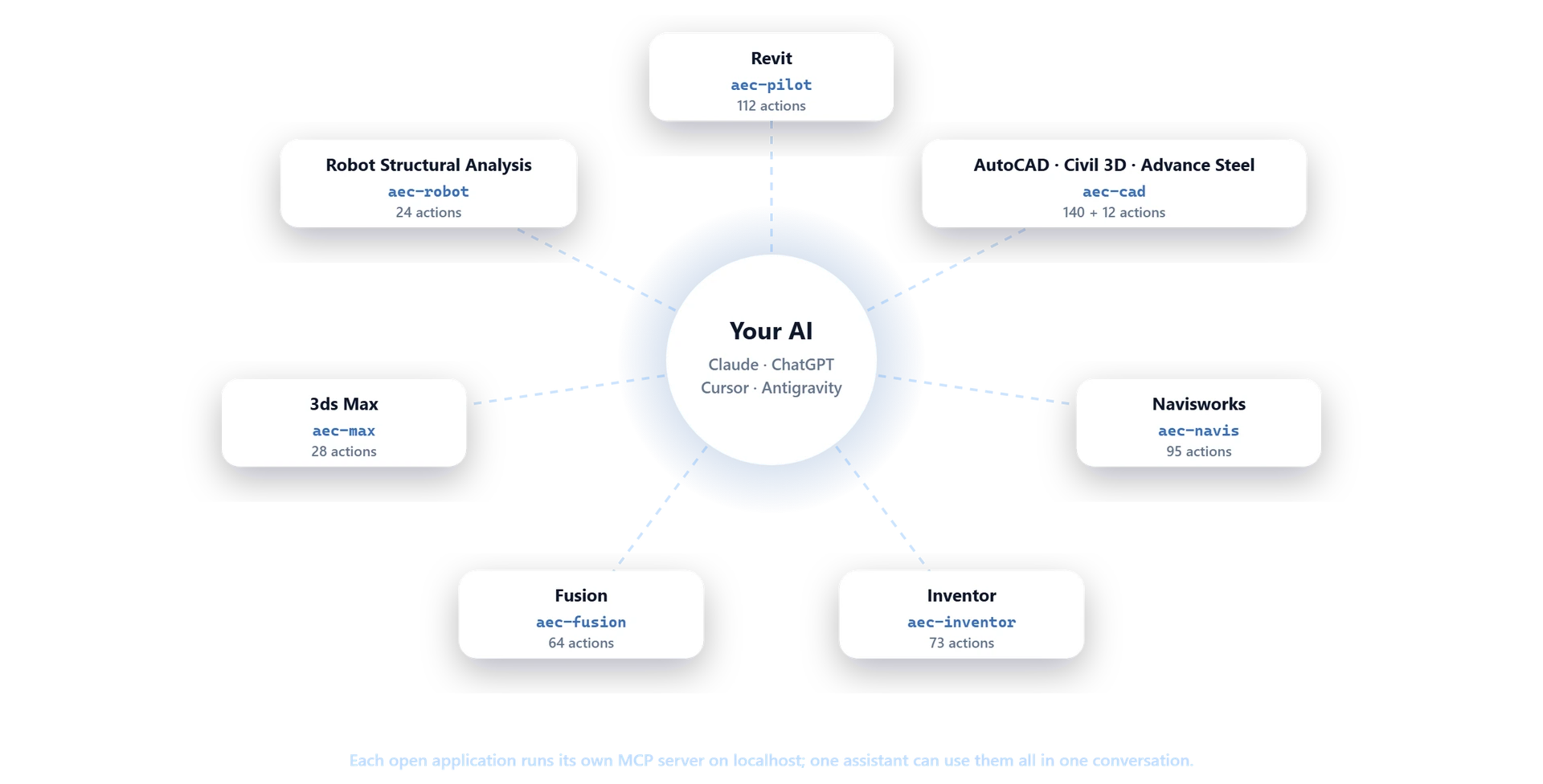
Each AEC Pilot application has its own server. Open Setup Guide in AutoCAD or Civil 3D and click Configure next to ChatGPT / Codex again: it adds aec-cad next to aec-pilot, and Codex keeps both. The AutoCAD connector starts with AutoCAD unless you turn that off in Settings → General, and listens on port 7900. Civil 3D uses the same install and the same server; the Civil actions appear only inside Civil 3D.
“Use aec-cad: list every alignment in this drawing with its length and start station.”
If it does not connect
- aec-pilot is not under MCP servers: quit ChatGPT or Codex completely and reopen it. The Setup Guide row should say Set up · aec-pilot.
- The server is listed but has no tools, or says Revit is not running: click Connector in Revit. The assistant reconnects by itself, no restart needed.
- You are in ChatGPT on the web: switch to the desktop app. The web version cannot reach a server on your PC.
- Several Revit windows are open: calls go to the one opened first, and every reply names it. Multi-instance in Setup Guide adds aec-pilot-a, -b and -c, one per window.
- The connector will not start, or uses another port: something else holds the port. Set a free one in Settings, then click Reconfigure next to ChatGPT / Codex so config.toml follows.
What it may change, and what stays on your PC
The connector runs on your PC and answers only requests from the same computer. Your model file is not uploaded; ChatGPT sees what the tools return for the questions you ask.
Settings → Tools lists every tool with a Read-Only column, and a tool you switch off is hidden from the assistant: keep the readers, switch off the writers, and it can answer anything and change nothing. The C# code tool, for work no ready tool covers, is turned off with Allow custom C# code in Settings → Security.
Navisworks, Inventor, Fusion, 3ds Max and Robot
The same Configure row is in every AEC Pilot application, each adding its own server: aec-navis for Navisworks, aec-inventor, aec-fusion, aec-max and aec-robot for Inventor, Fusion, 3ds Max and Robot. Prefer to stay inside the application? Chat on the AEC Pilot tab opens Pilot Chat, with your own API key.
First requests to try
- “Which walls on Level 3 have no Fire Rating set?”
- “List the warnings in this model, grouped by type.”
- “Tag every door in the active view.”
- “Create a sheet for each level and place its floor plan on it.”
- “Move everything on layer C-ROAD to C-ROAD-NEW and set it to colour 3.”
- “Which pipes in the storm network have less than 1.2 m of cover, and where?”
Frequently asked questions
Can ChatGPT connect to Revit?
Yes, through an MCP server inside Revit. Use the ChatGPT desktop app, the Codex CLI or the Codex IDE extension: AEC Pilot’s Setup Guide connects them to Revit 2023–2027 in one click. ChatGPT on the web cannot reach a server on your PC.
Is there a Revit MCP server for Codex?
Yes. AEC Pilot runs aec-pilot inside Revit and writes it into Codex’s config.toml for you. Autodesk’s own Revit MCP server is a Technical Preview for Revit 2027.2 and later.
Does ChatGPT work with AutoCAD and Civil 3D?
Yes, the same way: Configure in AutoCAD’s or Civil 3D’s Setup Guide adds aec-cad. AutoCAD LT is not supported, because it does not load .NET add-ins.
Do I need to edit config.toml?
No. Configure writes the entry, keeps your other servers and backs up the old file. If you prefer, Set up by hand gives you the snippet. There is no Node.js or Python to install.
Does my model leave my computer?
The model file does not: the server runs on your PC and answers only requests from it. ChatGPT sees what the tools return for the questions you ask.
How much does it cost?
AEC Pilot is free for 14 days, then €199 per seat per year + VAT, for all nine applications on the computer. You use your own OpenAI account; AEC Pilot adds no AI fee.
Put ChatGPT to work in your Revit model.
Free for 14 days — every tool, no card required.