Guide · AutoCAD & Civil 3D
How to connect Claude to AutoCAD and Civil 3D, step by step
You can connect Claude to AutoCAD and Civil 3D and let it work on the drawing you have open. The way in is an AutoCAD MCP server. Here is the whole setup with AEC Pilot, for Claude, ChatGPT / Codex, Cursor and Antigravity, without editing a configuration file.
What you need
MCP, the Model Context Protocol, is an open standard that lets an AI assistant call real actions in other software. AEC Pilot runs an MCP server named aec-cad inside AutoCAD, so the assistant works on the live drawing.
- AutoCAD or Civil 3D 2021–2027. AutoCAD LT does not load .NET add-ins, so it is not supported.
- An MCP client: Claude Desktop, Claude Code, ChatGPT / Codex, Cursor or Google Antigravity.
- AEC Pilot, free for 14 days, and your own AI account: AEC Pilot adds no AI fee.
Step 1: install AEC Pilot and activate it
Close AutoCAD and Civil 3D, then run the installer: it finds your Autodesk applications and adds AEC Pilot to the ones you pick. Then open the AEC Pilot tab, click Activate and paste the username and licence key from your account. Settings asks for the licence first, so do this before step 2.
Step 2: open Setup Guide and click Configure
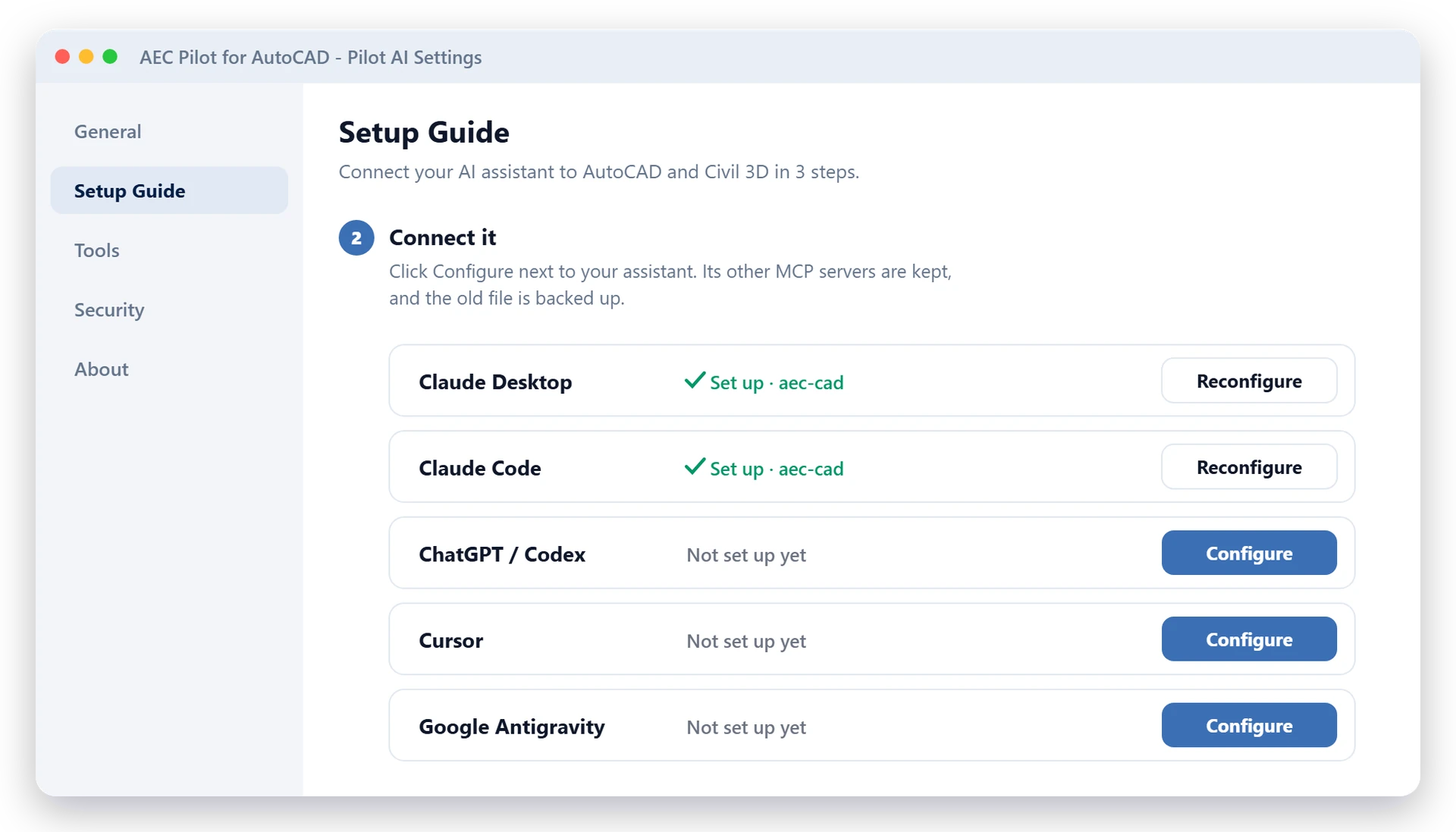
On the AEC Pilot tab, click Settings, open Setup Guide and click Configure next to your AI client. AEC Pilot backs up the client’s configuration file, adds its aec-cad entry and keeps your other MCP servers.
Clients read their configuration only at startup, so quit yours completely and reopen it:
- Claude Desktop: quit it from the tray icon; closing the window is not enough. aec-cad then appears under + → Connectors.
- Claude Code: close every VS Code window and Claude Code session, then reopen. In the Claude desktop app, configure both rows: + → Connectors reads Claude Desktop’s configuration, Claude Code sessions their own.
- ChatGPT / Codex: the entry goes into a TOML file, not JSON, checked before saving. Quit and reopen the app.
- Cursor: Configure creates the MCP configuration file if Cursor has none yet. Quit and reopen Cursor.
- Google Antigravity: of the several mcp_config.json files it installs, Configure writes to the one it reads. Quit and reopen it.
Setup Guide lists only the clients installed on this PC. No row for yours? Install it, then click Rescan.
Step 3: start the connector and check the connection
The connector is the small server inside AutoCAD that your client talks to. It starts with AutoCAD or Civil 3D unless you turn that off in Settings → General. Step 3 of Setup Guide shows Connector is running and the port, 7900 by default; if it is stopped, click Start or Connector on the ribbon.
Test connection should answer “Server responding at http://localhost:7900/”. Then ask your assistant, in a new chat:
“Are you connected to aec-cad? Which drawing is open?”
It names the AutoCAD or Civil 3D window it reached and the drawing open in it. Setup done.
First things to ask in AutoCAD
Start with something you can check yourself, then give it real work:
- Layers: list, create, set current, change properties, isolate, merge and delete.
- Text and blocks: find and replace in text and MText, read and write block attributes, add dimensions.
- Geometry and output: draw, move, copy, rotate, mirror and offset; plot layouts to PDF and export DWG.
Where no ready action fits, it writes and runs a short C# snippet in the open drawing.
Civil 3D specifics
Civil 3D uses the same install and the same aec-cad server; the Civil actions appear only inside Civil 3D.
- Surfaces from points, breaklines and boundaries; cut, fill and net volume between two surfaces.
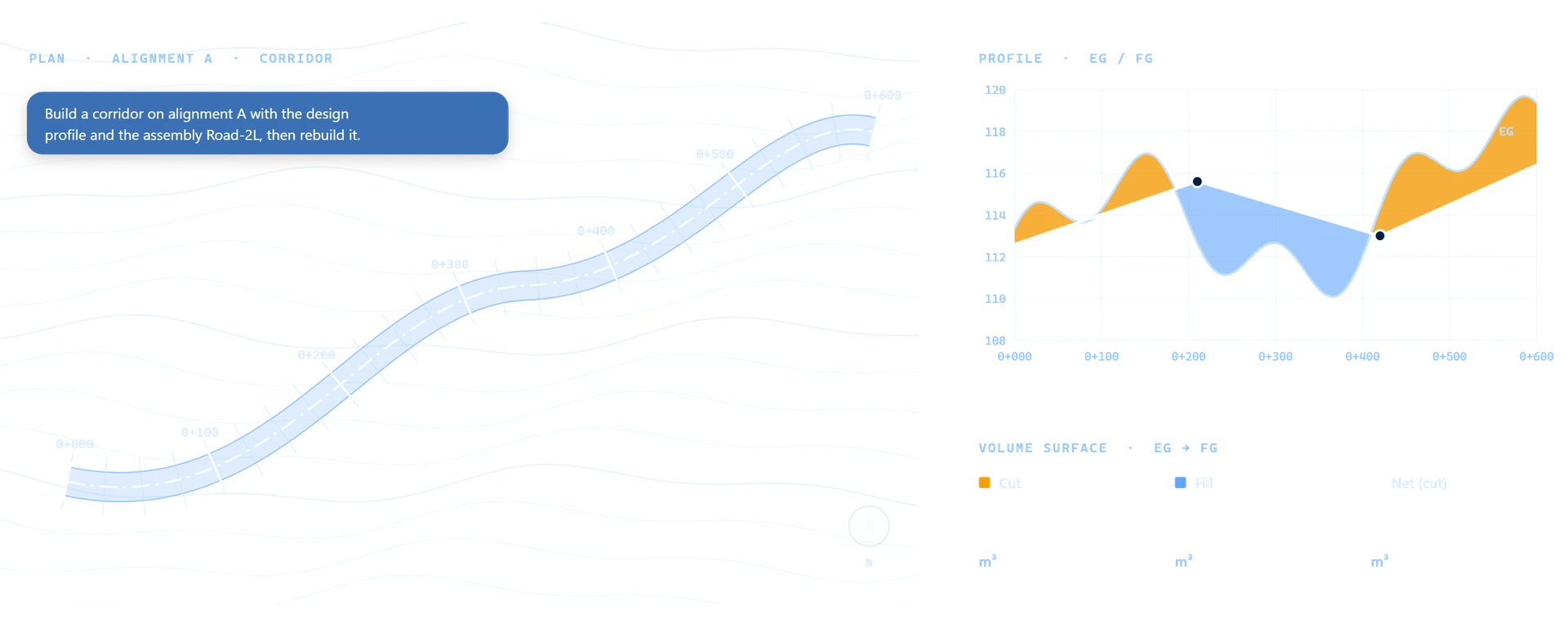
- Alignments, profiles and profile views; corridors from an alignment, a profile and an assembly.
- COGO points from a point file, and the cover over each pipe in a pipe network.
A corridor needs an assembly: name one, or the assistant says so instead of building something empty. With Dynamo open, it can also build and run graphs; Allow Dynamo in Settings → Security turns that off.
Civil 3D AI: what it can do · AutoCAD & Civil 3D MCP
If it does not connect
- The client does not list aec-cad: quit it fully, tray included, and reopen it. Its Setup Guide row should say Set up.
- Tools say AutoCAD is not running: start the connector. The assistant reconnects by itself, no client restart needed.
- The connector will not start, or uses another port: something else holds 7900. Set a free port on the General page, then click Reconfigure next to your client.
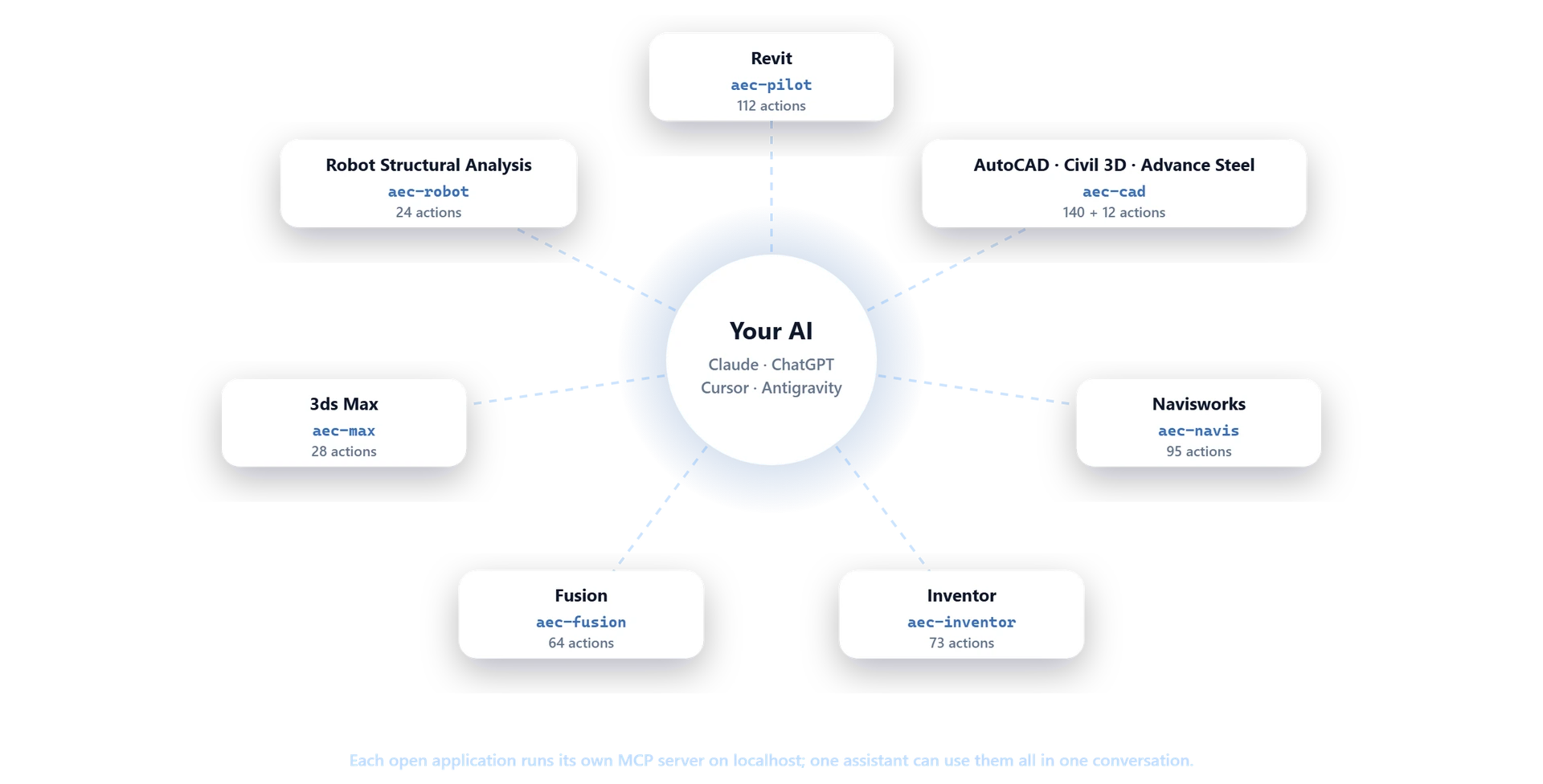
- Several windows are open: calls go to the one opened first, and every reply names it. Multi-instance in Setup Guide adds aec-cad-a, -b and -c, one per window.
- No AEC Pilot tab: check for AutoCAD or Civil 3D 2021–2027, not LT.
Privacy: what stays on your PC
The connector runs on your PC and listens on localhost only; requests from other computers are refused. Your drawing is never uploaded; your AI client sees the answers to what you ask.
Settings → Tools lists every action with a Read-Only column, and a switched-off action is hidden from the assistant: keep the readers, switch off the writers. The C# code tool can be turned off in Settings → Security; while it is on, risky calls such as deleting files or network access are blocked and every run is logged. Deleting objects always needs an explicit scope.
Revit, Navisworks and the rest
Each AEC Pilot application has its own server, so several can be connected at once: aec-pilot for Revit, aec-navis for Navisworks. Prefer to stay inside AutoCAD? Chat on the AEC Pilot tab opens Pilot Chat, with your own API key.
Connect Claude to Revit · All MCP guides
First requests to try
- “List every layer with how many objects are on it, and flag the empty ones.”
- “Replace ‘REV A’ with ‘REV B’ in every titleblock attribute and tell me how many you changed.”
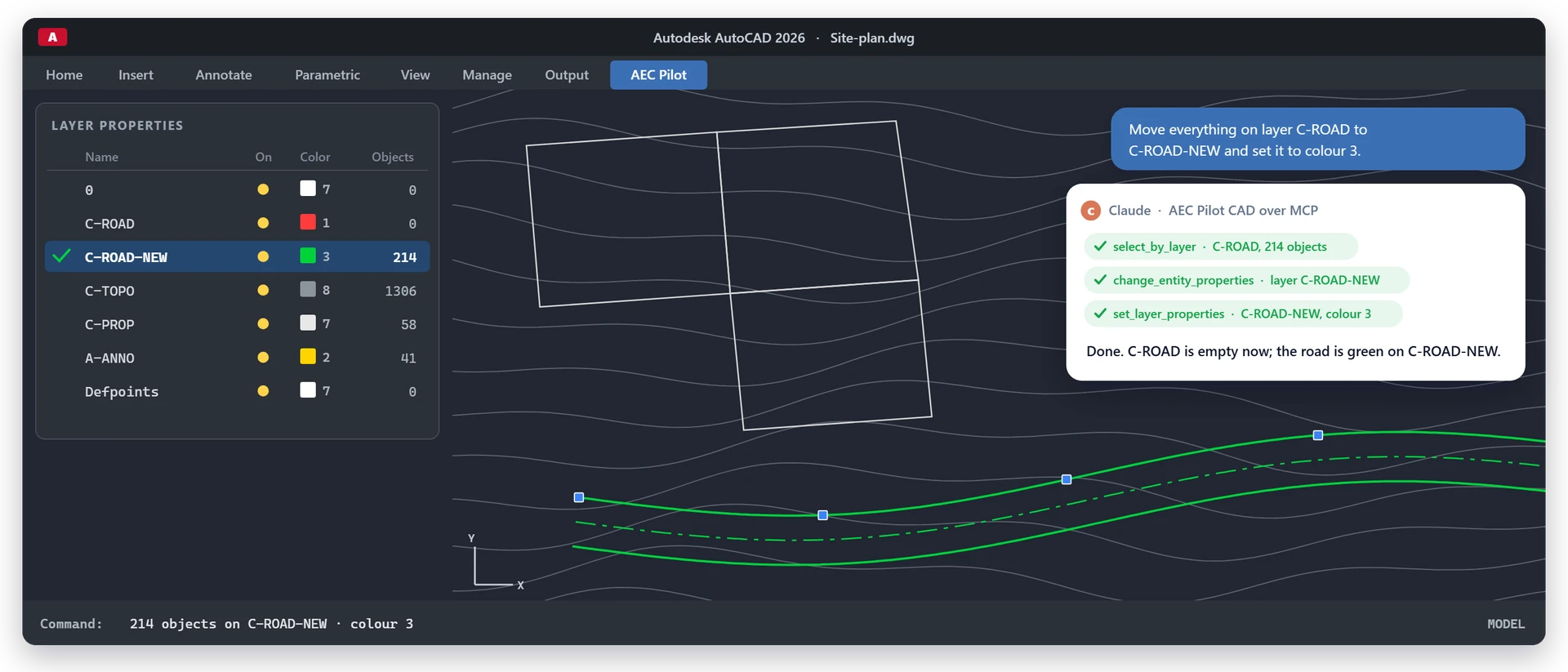
- “Move everything on layer C-ROAD to C-ROAD-NEW and set it to colour 3.”
- “Plot all layouts in this drawing to PDF.”
- “List the alignments, profiles and surfaces in this drawing, with lengths and elevation ranges.”
- “Which pipes in the storm network have less than 1.2 m of cover, and where?”
Frequently asked questions
Can Claude control AutoCAD?
Yes, through an MCP server inside AutoCAD. AEC Pilot provides one for AutoCAD and Civil 3D 2021–2027: Claude reads the open drawing, draws, edits, plots and exports, and in Civil 3D builds surfaces, alignments and corridors.
Is there an MCP server for AutoCAD?
Yes. AEC Pilot runs a local one, aec-cad, inside AutoCAD and Civil 3D; Settings → Setup Guide → Configure connects your client. Autodesk’s own runs inside Autodesk Assistant and is read-only in AutoCAD.
Does it work with ChatGPT / Codex?
Yes. ChatGPT / Codex has its own Configure row, which writes Codex’s TOML configuration. Cursor and Google Antigravity work the same way, and any MCP client can connect.
Does it work with AutoCAD LT?
No. AutoCAD LT does not load .NET add-ins; you need full AutoCAD or Civil 3D 2021–2027.
Is it safe? Does my drawing leave my PC?
Your drawing stays on your PC: the server listens on localhost only and refuses other computers. You can switch off any action, keep only the read-only ones, or turn off the code tool.
Do I need to edit JSON?
No. Configure writes the entry, backs up the old file and keeps your other servers. The bridge ships with the installer, so there is no Node.js to install. Prefer doing it yourself? Set up by hand in Setup Guide gives you the snippet.